Ever found yourself in a pickle, trying to figure out how to make a minus sign in Excel? You're not alone. Whether you're a seasoned Excel user or just starting out, understanding how to use the minus sign effectively can save you time and frustration. In this guide, I'll walk you through everything you need to know about using the minus sign in Excel, from basic Excel formulas to advanced Excel functions and shortcuts. So, let's dive in and make your Excel experience a breeze!
Understanding the Basics of the Minus Sign in Excel
First things first, let's get acquainted with the basics. The minus sign in Excel is more than just a simple symbol; it's a powerful tool that allows you to perform a variety of calculations. Whether you're subtracting numbers, creating negative values, or working with Excel formulas, the minus sign is your go-to operator.
Subtracting Numbers with the Minus Sign
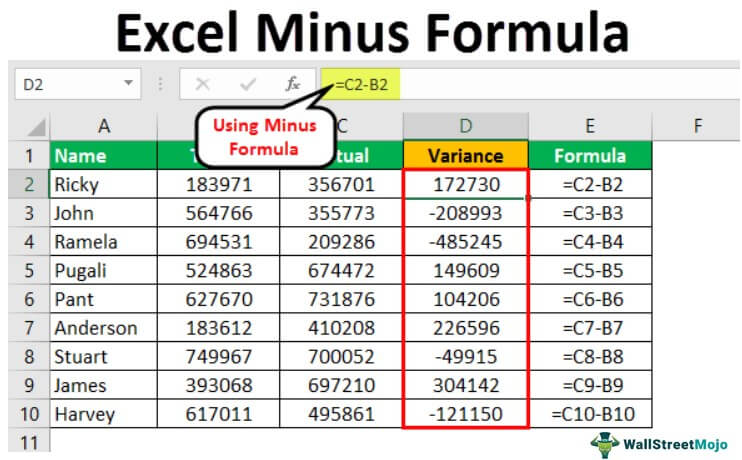
Subtracting numbers is one of the most common uses of the minus sign in Excel. To subtract two numbers, simply use the minus sign between them. For example, if you want to subtract 5 from 10, you would enter the formula =10-5 in a cell. Excel will instantly calculate the result, giving you 5. It's as simple as that!
Creating Negative Values
Another handy use of the minus sign is creating negative values. If you have a positive number and you want to make it negative, just place a minus sign in front of it. For instance, if you have the number 7 in a cell and you want to make it -7, you would enter the formula =-7. This is particularly useful when working with financial data or any scenario where negative values are relevant.
Advanced Excel Formulas and Functions
Now that you've got the basics down, let's explore some advanced Excel formulas and functions that utilize the minus sign. These tips and tricks will help you take your Excel skills to the next level.
Using the Minus Sign in Excel Formulas
Excel formulas can get quite complex, but the minus sign remains a fundamental part of many calculations. For example, if you want to calculate the difference between two cells, say A1 and B1, you would use the formula =A1-B1. This formula subtracts the value in cell B1 from the value in cell A1, giving you the difference.
But what if you want to subtract a range of cells? No problem! You can use the SUM function in combination with the minus sign. For example, if you want to subtract the sum of cells C1:C5 from the sum of cells D1:D5, you would use the formula =SUM(D1:D5)-SUM(C1:C5). This formula calculates the sum of each range and then subtracts the second sum from the first.
Excel Shortcuts for Efficient Workflow
Excel shortcuts can save you a ton of time, especially when working with the minus sign. One of the most useful shortcuts is the auto-fill feature. If you have a series of numbers and you want to create a sequence of negative values, you can use the auto-fill handle to drag the sequence down. For example, if you have the numbers 1, 2, 3 in cells A1, A2, and A3, you can drag the fill handle down to create a sequence of negative values, such as -1, -2, -3.
Another handy shortcut is the use of the F4 key. When you select a cell with a formula that includes the minus sign, pressing F4 will cycle through different reference types, such as absolute, relative, and mixed references. This can be incredibly useful when you need to adjust the scope of your calculations without changing the formula itself.
Excel Tips and Tricks for Mastering the Minus Sign
Ready to become an Excel pro? Here are some tips and tricks to help you master the minus sign and make the most of your Excel experience.
Consistent Formatting for Clarity
Consistency is key when it comes to formatting your Excel sheets. Use a consistent style for your minus signs to ensure clarity and readability. For example, you might choose to always use a leading minus sign for negative values, or you might prefer to use parentheses to indicate negative numbers. Whatever style you choose, stick with it to avoid confusion.
Error Checking and Troubleshooting
Even the best Excel users make mistakes. When working with the minus sign, it's important to regularly check your formulas for errors. Excel provides several tools to help you with this, such as the Formula Auditing toolbar. This toolbar allows you to trace precedents and dependents, evaluate formulas, and check for errors. By using these tools, you can quickly identify and fix any issues with your minus sign calculations.
Conclusion
Mastering the minus sign in Excel is a game-changer. From basic subtraction to advanced formulas and functions, the minus sign is a versatile tool that can save you time and effort. By understanding the basics, exploring advanced techniques, and utilizing Excel shortcuts, you can take your Excel skills to the next level.
So, are you ready to become an Excel master? Start practicing these tips and tricks today, and watch as your Excel proficiency soars. Remember, the key to success is consistency and practice. The more you use the minus sign in your Excel formulas, the more comfortable and efficient you'll become.
FAQs
1. How do I subtract a range of cells in Excel?
To subtract a range of cells in Excel, you can use the SUM function in combination with the minus sign. For example, to subtract the sum of cells C1:C5 from the sum of cells D1:D5, use the formula =SUM(D1:D5)-SUM(C1:C5).
2. Can I use the minus sign to create negative values in Excel?
Yes, you can use the minus sign to create negative values in Excel. Simply place a minus sign in front of a positive number to make it negative. For example, to make the number 7 negative, enter the formula =-7.
3. What are some useful Excel shortcuts for working with the minus sign?
Some useful Excel shortcuts for working with the minus sign include the auto-fill feature and the F4 key. The auto-fill feature allows you to create sequences of negative values by dragging the fill handle down. The F4 key cycles through different reference types, such as absolute, relative, and mixed references, when you select a cell with a formula that includes the minus sign.
4. How can I ensure clarity and readability when using the minus sign in Excel?
To ensure clarity and readability when using the minus sign in Excel, use a consistent formatting style. For example, you might choose to always use a leading minus sign for negative values or use parentheses to indicate negative numbers. Whatever style you choose, stick with it to avoid confusion.
5. What tools can I use to check for errors in my Excel formulas?
Excel provides several tools to help you check for errors in your formulas, such as the Formula Auditing toolbar. This toolbar allows you to trace precedents and dependents, evaluate formulas, and check for errors. By using these tools, you can quickly identify and fix any issues with your minus sign calculations.
```
Posting Komentar